
Summary
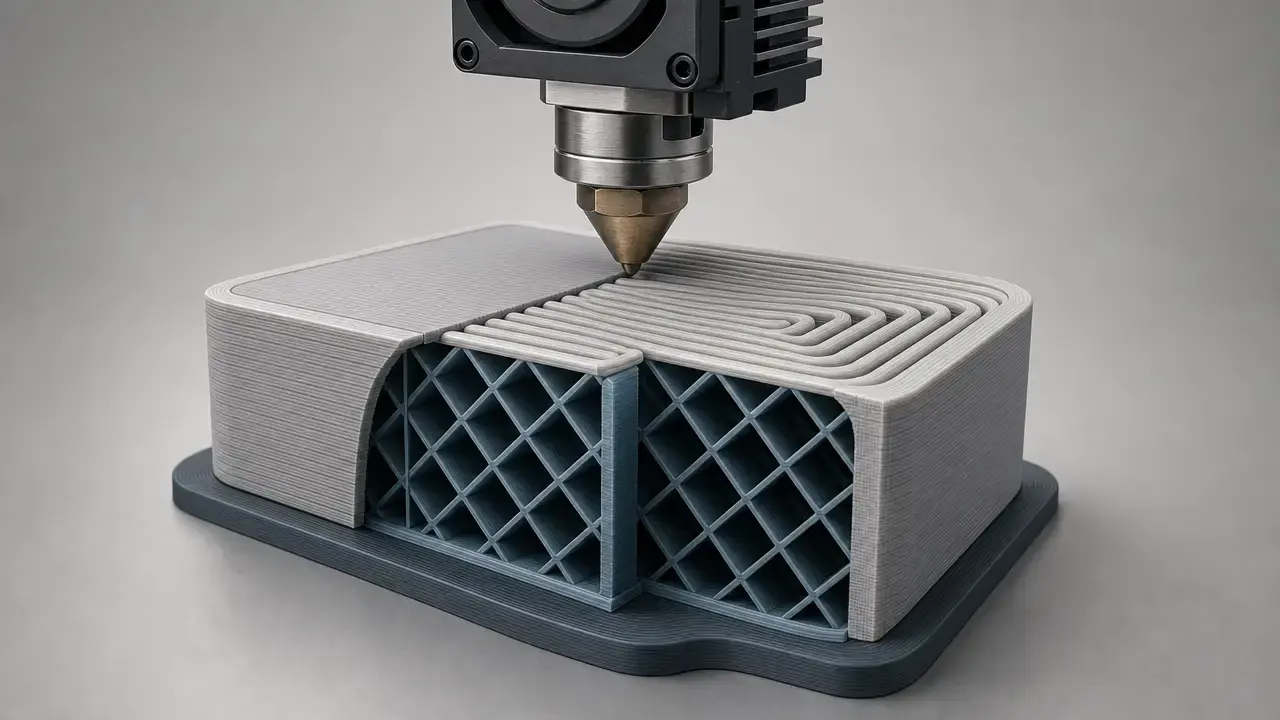
In combing mode Cura uses a travel-routing strategy that tries to keep non-print moves inside already printed areas where possible. All Cura numbers in this article are base-definition defaults from Cura’s definition files, not universal printer recommendations, and the effective result can change because CuraEngine settings are inherited and overridden through a parent hierarchy. [4] [6]
In practice, combing can make outside blemishes less visible by shortening the portion of a travel move that happens in open air, but it does not eliminate stringing. CuraEngine explicitly notes that travel between parts can still ooze even when retracted, and that combing may trade a shorter outside crossing for a longer routed move overall. That is why the same setting can reduce outer-wall scars on one model, leave marks over infill on another, or add travel time without changing the underlying tendency to ooze. [5]
Process context: material extrusion and why travel moves matter
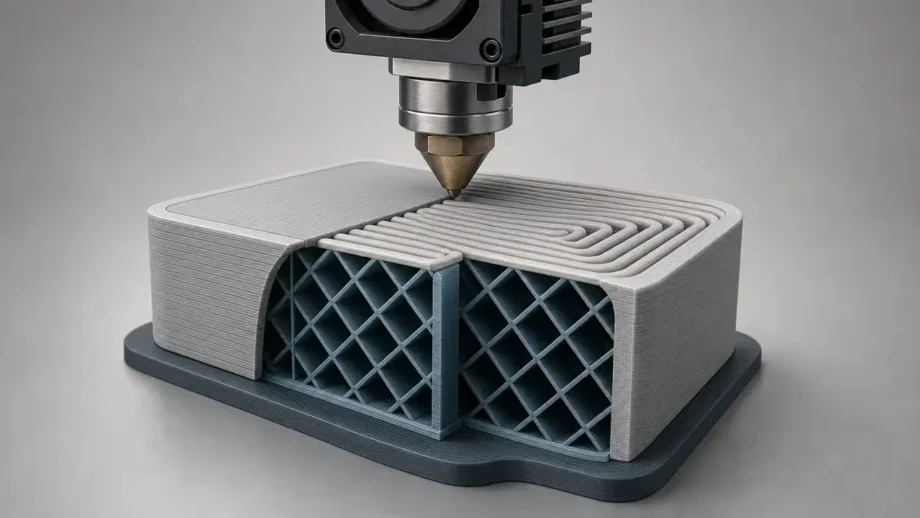
In standards language, the broad process family here is material extrusion under ISO/ASTM 52900:2021, Edition 2, which ISO says was last reviewed and confirmed in 2025. NIST’s Material Extrusion page was created on November 15, 2024, and updated on May 15, 2025. That is enough context to keep combing in the right box: it is slicer path planning inside FDM/FFF work, not a universal additive-manufacturing concept. In everyday slicing terms, travel moves are nozzle motions made without intentional deposition, and they still consume machine time and can still leave ooze-related artifacts. [1] [2] [10]
Key terms you’ll see in Cura
In Cura, the practical issue is not only where material is extruded, but where the nozzle travels between printed segments. A travel move through open air can expose the nozzle to ooze, and CuraEngine notes that this can happen even after retraction. Cura’s Preview is useful because its Line Type view separates shell, top/bottom, and infill, while also showing regular travel and travel with retraction as different line types. That makes it easier to see whether a blemish is likely to land on an outer wall, on top skin, or somewhere internal. [5] [7]
- Travel move — a non-print repositioning move from one printed segment to another. [5]
- Retraction — pulling filament back before some travel moves to reduce ooze, but not guarantee its absence. [4] [5]
- Combing — routing travel through printed regions where the slicer judges that path preferable. [4] [5]
- Z hop — a temporary vertical lift during qualifying travel moves to create clearance over printed geometry. [4]
- Skin — Cura’s top and bottom solid regions, distinct from shell and infill. [7]
How combing works in Cura
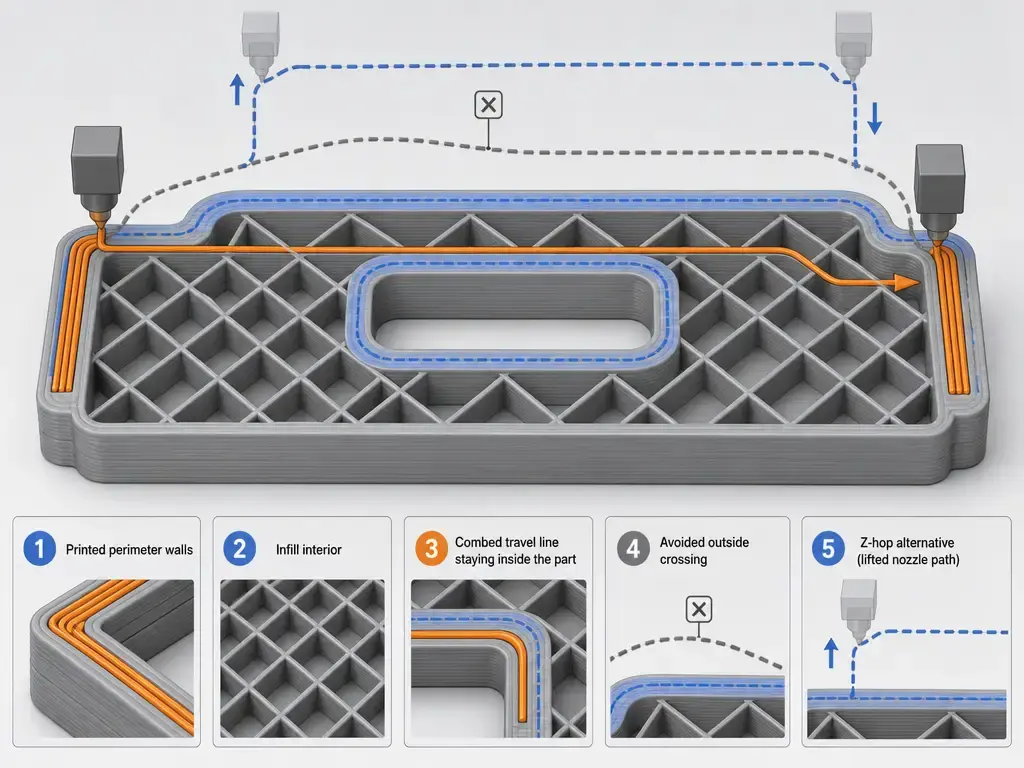
In Cura, combing tries to keep some travel moves inside already printed regions so the nozzle is less likely to leave a visible blip on the outside of the part. CuraEngine describes the tradeoff directly: when the nozzle must move from one part to another, it may still ooze even if the material is retracted, so the engine looks for the closest crossing between those parts to minimize the amount of material left on the exterior. Combing is best understood as a routing choice, not as a seal against stringing. [5]
The path planner does not just draw a straight line from one feature to the next. CuraEngine also tries to avoid crossing outside walls unnecessarily, and it may choose horizontal collision avoidance instead of a Z hop because Z motion is comparatively slow and wear-sensitive. Its collision-avoidance logic offsets potential obstacles by a safe distance, checks whether the travel line intersects that offset, and then chooses a detour heuristically based on the perimeter it needs to follow. On screen, that can make a route look indirect or even odd, especially when the nozzle stays inside the part, detours around walls, unretracts away from the outer surface, or travels over infill instead of crossing exposed perimeters directly. [5]
A useful mental model is this five-step workflow:
- End the current printed path segment. [5]
- Choose the next place printing needs to start. [5]
- Decide whether the move should retract, comb, Z hop, avoid, or combine those behaviors. [5]
- Route the travel move through the safest available path the planner can find. [5]
- Inspect Preview to see whether the result stayed over shell, skin, or infill, and whether the move was retracted or unretracted. [7]
Which Combing Mode should you choose?
Choose a combing mode by deciding where you can tolerate the artifact most: outer walls, top/bottom skin, or internal infill. The setting names describe intent, not a guarantee, so the right starting point is not “which mode is best in general,” but “which surface matters most on this part?” If your priority is hiding marks from view, you usually want a mode that prefers internal travel. If your priority is simpler, more direct motion and you plan to rely more on retraction tuning, you may prefer less combing. [4] [5]
Geometry matters as much as the setting name. Thin walls, sparse infill, large open top surfaces, or awkward internal islands give the path planner fewer places to hide travel, and inherited profile settings can change what your machine actually does compared with the base definition. Preview is the reality check because it lets you confirm whether a route is touching shell, skin, or infill instead of assuming the mode name tells the whole story. [6] [7]
Start with the symptom you care about, then verify in Preview:
- If you see outer-wall travel scars, start with Not on Outer Surface, then verify in Preview that the route is actually staying off exposed shell where possible. [4] [7]
- If you see top-surface scuffs, start with Not in Skin, or Within Infill if the model has enough infill to carry the route, then verify in Preview. [4] [7]
- If you see lots of outside stringing and do not mind some internal strings, try All or Within Infill depending on the model, then verify in Preview. [4] [5] [7]
- If you need the shortest, most direct travel and want to rely more on retraction tuning, try Off, then verify in Preview. [4] [5] [7]
Cura combing modes explained
As of August 10, 2026, GitHub marks UltiMaker Cura 5.13.0 as the latest stable release and lists 5.14.0-alpha.0 as a pre-release. In that stable target, the retraction_combing setting exposes five user-facing modes: Off, All, Not on Outer Surface, Not in Skin, and Within Infill. The same base definition also contains a computed value expression that can yield no_outer_surfaces under certain conditions, but that is an implementation detail in the definition file, not a user-facing change to the base default_value, which remains all. [3] [4]
In Preview, shell means the vertical outer wall, top/bottom means skin, and infill means the internal fill structure. So Not on Outer Surface is about exposed wall crossings, while Not in Skin is about top and bottom solid regions. Within Infill is stricter in intent, but still only where possible; on models with little or poorly connected infill, the planner may have limited room to honor that preference. [4] [7]
| Cura mode | Tries to do | When it’s useful | Typical downside |
|---|---|---|---|
| Off | Prefers a more direct travel strategy and lets retraction logic handle more moves. | Useful when you want simpler motion and plan to tune retraction separately. | Can send more travel across exposed areas. [4] [5] |
| All | Tries to route travel through printed regions as broadly as possible. | Useful when hiding outside blemishes matters more than taking the shortest route. | Can increase routed travel length and move marks inward. [4] [5] |
| Not on Outer Surface | Tries to avoid exposed shell crossings where possible. | Useful when outer-wall finish matters most. | Can still route over other printed regions and may add detours. [4] [7] |
| Not in Skin | Tries to avoid top and bottom solid regions where possible. | Useful when top or bottom surface finish matters more than hidden internal travel. | Can still cross shell or infill if that is the available path. [4] [7] |
| Within Infill | Tries to keep travel inside infill where possible. | Useful when the part has enough infill to support that route. | Sparse or disconnected infill can limit how often it works. [4] [7] |
Related Cura travel settings that change combing outcomes
Combing is only one part of Cura’s travel behavior. In the 5.13.0 base definition, the retraction distance default is 6.5 mm, retraction speed is 25 mm/s, and Retraction Minimum Travel is 1.5 mm, but those are baselines only and may be overridden by machine, material, quality, or user settings in the hierarchy. Z Hop When Retracted defaults to false, and Z Hop Height defaults to 1 mm, but both depend on retraction-related settings being active first. That is why an unretracted combing move may not hop at all: if no retraction event is being used for that move, there may be no qualifying trigger for Z hop. [4] [6]
The other settings in this cluster are about avoiding contact, not choosing the main routing intent. Inside Travel Avoid Distance has a base-definition default of 0.6 mm and is calculated as machine_nozzle_size * 1.5, while Travel Avoid Distance defaults to 0.625 mm and is calculated from machine_nozzle_tip_outer_diameter / 2 * 1.25. Avoid Printed Parts When Traveling defaults to true but is enabled only when combing is not off, and Avoid Supports When Traveling defaults to false and depends on both combing being enabled and Avoid Printed Parts being active. These settings help explain why two profiles with the same combing mode can still show different travel shapes. [4]
One more nuance: the base definition also includes Z Hop Only Over Printed Parts, which defaults to false and depends on retraction, Z hop, and printed-part avoidance being active together. For advanced multi-extruder setups, Z Hop After Extruder Switch defaults to true, but it matters only when more than one extruder is enabled. Preview remains the fastest reality check because it shows whether the move was plain travel or travel with retraction, and whether the route touched the regions you meant to protect. [4] [7]
| Setting | What it changes | Depends on / interacts with | What to watch in Preview |
|---|---|---|---|
| Combing Mode | Chooses the travel-routing intent for non-print moves. | Interacts with retraction, Z hop, and avoidance settings. | Watch whether travel shifts toward shell, skin, or infill. [4] [7] |
| Max Comb Distance With No Retract (base-definition default: 0 mm) | Sets the distance limit after which a combed move starts using retraction. | At 0, there is no maximum and combing moves do not use retraction; above 0, longer combed moves can retract. |
Watch for long internal blue lines that become lilac when the limit is exceeded. [4] [7] |
| Retraction Minimum Travel (base-definition default: 1.5 mm) | Sets the minimum move length before retraction is considered. | Computed in the base definition as line_width * 2. |
Watch short hops that stay unretracted even when combing is active. [4] [7] |
| Z Hop When Retracted (base-definition default: false) | Enables nozzle lift on qualifying retracted moves. | Requires retraction_enable; Z Hop Height is a separate setting with a 1 mm base-definition default. |
Watch whether the troublesome move is actually retracting first. [4] |
| Avoid Printed Parts When Traveling (base-definition default: true) | Tries to keep travel from crossing printed parts. | Enabled only when combing is not off. | Watch for detours around printed geometry instead of straight crossings. [4] [7] |
| Inside Travel Avoid Distance (base-definition default: 0.6 mm) | Sets internal clearance from already printed outer walls while traveling inside the model. | Computed as machine_nozzle_size * 1.5; interacts with combing and collision avoidance. |
Watch how closely internal travel hugs walls versus detouring away from them. [4] [5] |
Performance and artifacts: what combing changes
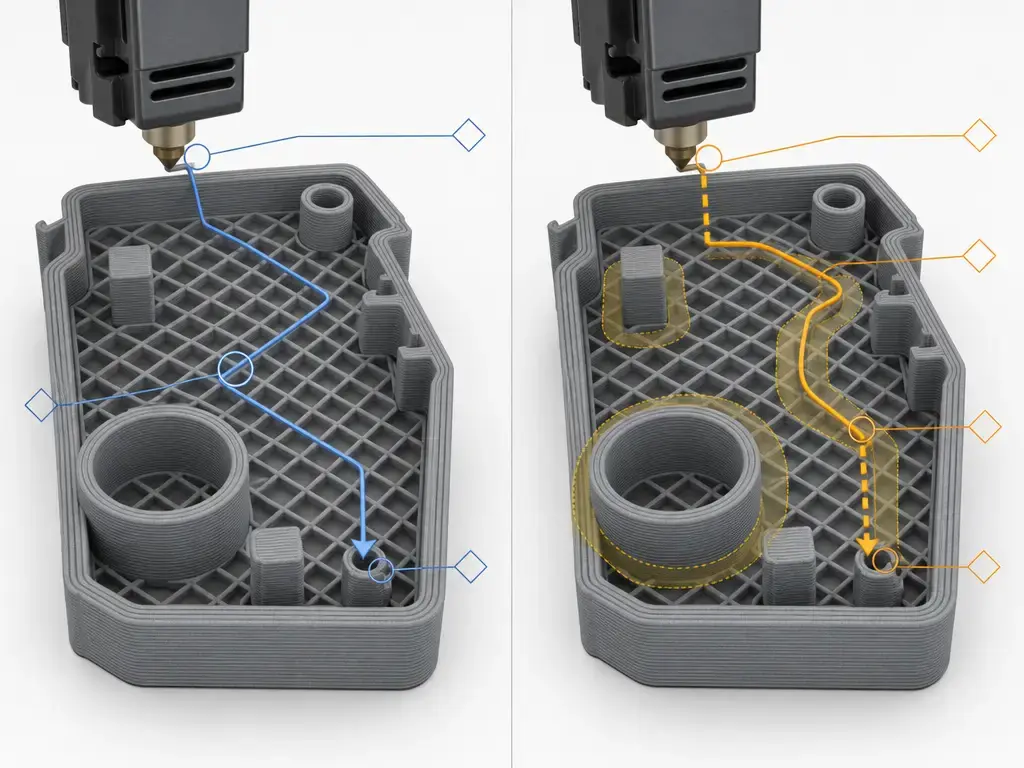
Combing mostly changes where an artifact shows up, not whether the underlying ooze is physically possible. CuraEngine says travel between parts can ooze even if the material is retracted, so a combed route can reduce visible outside blemishes by shortening the open-air portion of the move. But the same rerouting can relocate the mark onto internal regions, leave wisps over infill, or put the nozzle onto top skin often enough to leave scuffs or witness marks. It can also make the move slower overall because the shortest geometric line is no longer the chosen route; CuraEngine explicitly says total travel time can be longer even while travel time outside the model is shorter. [5]
Preview is the easiest way to separate those cases. In Cura’s Line Type view, blue lines are regular travel moves and lilac lines are travel moves with retraction, so you can see whether a suspect path was combed, retracted, both, or neither. [7]
Print-time claims need guardrails. The 5.13.0 base definition lists Travel Speed at 120 mm/s, with a minimum of 0.1 mm/s and a warning maximum of 300 mm/s, but that still does not give you a universal “combing costs X percent” rule. Travel time depends on the routed path, the effective inherited speed values, and printer-side motion behavior beyond the slicer file alone. So combing can increase time on some jobs, barely matter on others, and occasionally trade retractions for longer internal detours rather than for faster prints. [4] [6]
Troubleshooting: map the symptom to the first Cura-side adjustment
Combing is geometry-dependent, which is why Within Infill should be read as a preference, not a guarantee. Some parts simply do not offer much usable infill, have disconnected internal islands, or expose wide top surfaces that leave the planner few safe internal routes. Preview is the first check because it tells you where the nozzle actually traveled, not where the mode name suggested it might travel. [4] [7]
The main Cura-side lever for long combed moves is Max Comb Distance With No Retract. In the base definition it defaults to 0 mm, which means there is no maximum and combing moves will not use retraction. If you set a positive value, longer combed moves can start retracting again. Retraction Minimum Travel also matters because it controls when retraction is considered at all, and Z hop behavior is still dependency-driven rather than automatic. Combing does not replace basic retraction or temperature sanity checks; it mostly decides where the symptom lands. [4]
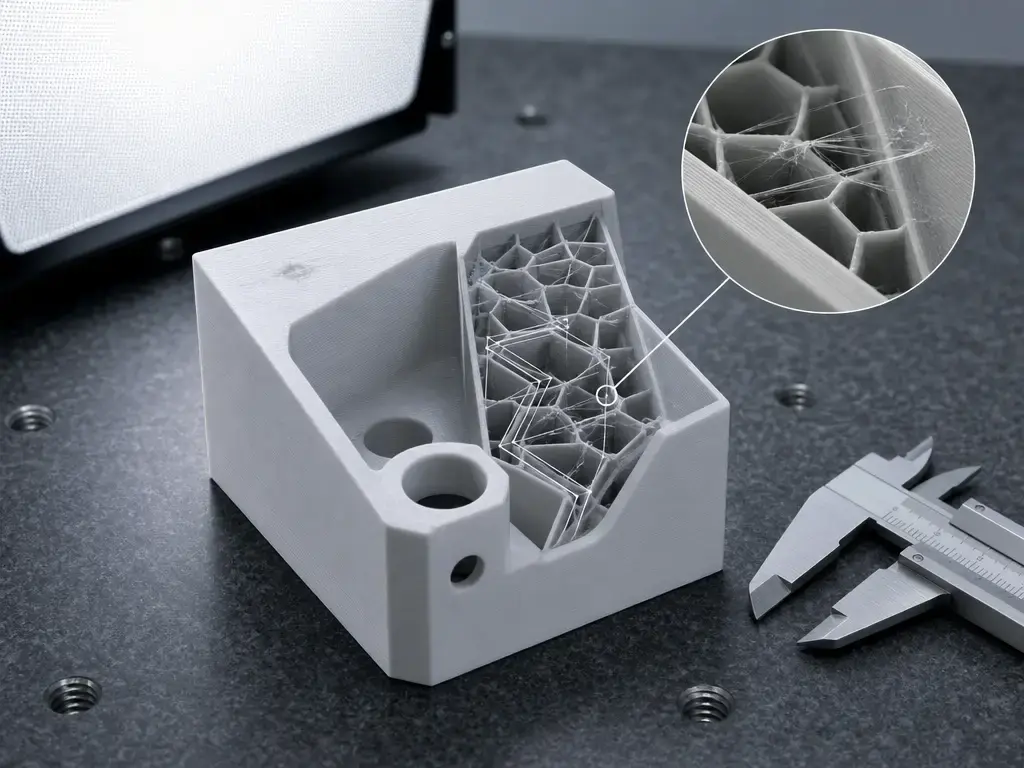
- Visible outside strings or blobs — First, confirm in Preview whether the line is crossing open air or exposed shell. Next, try Not on Outer Surface or All, depending on whether you want stricter outer-wall protection or broader internal routing. Then check Max Comb Distance With No Retract, Retraction Minimum Travel, and whether the move qualifies for retraction and Z hop at all. [4] [5] [7]
- Top-surface scratches or scuffs — First, confirm in Preview that the route is actually touching skin rather than only walls or infill. Next, try Not in Skin, or Within Infill if the model has enough infill to support it. Then check Max Comb Distance With No Retract and the Z hop dependency chain before assuming the mode itself failed. [4] [7]
- Internal ooze or webbing over infill — First, confirm in Preview that the route is really staying inside the part. Next, try a less aggressive internal-routing option if All or Within Infill is producing long internal passes. Then check Max Comb Distance With No Retract, Retraction Minimum Travel, and avoidance settings that may be forcing awkward detours. [4] [5] [7]
- Unexpected print-time increase — First, confirm in Preview whether combing introduced long detours around walls or internal islands. Next, try Off or a more restrictive mode if you want simpler travel. Then check the combing distance limit and the effective inherited travel behavior before treating one previewed route as a universal timing rule. [4] [5] [6] [7]
Cura vs PrusaSlicer: “Avoid crossing perimeters”
PrusaSlicer’s Avoid crossing perimeters has a related goal—minimizing crossings of external perimeters during travel moves—but it is not a one-click equivalent to Cura’s combing modes. Prusa says enabling it can increase print time, notes that the algorithm was significantly improved in version 2.3, and says Max detour length can be set in millimeters or percent, with 0 disabling that check. [8]
Research context
Travel planning is an active research problem, which helps explain why combing is useful but not magical. A 2019 Solid Freeform Fabrication paper defines the start/stop point as the seam and treats travel between paths as wasted machine time because material is not being added; ORNL’s publication page lists that paper as a 2019 conference paper on pages 1113–1125. A later 2024 SFF paper on GRATER reported, for its tested geometry, up to 95% fewer travel moves, travel distance reduced by a factor of 3, and build time reduced by about 25%, using a 221-layer part sliced in Cura, GRATER, and ORNL Slicer. These results are geometry- and system-specific and are not benchmarks for Cura combing or desktop FDM/FFF performance. [9] [10] [11]
Practical takeaways
The main job of combing mode Cura is to shift where travel happens, which can make outside blemishes less visible without removing the underlying chance of ooze. Preview first, pick where artifacts are acceptable, and do not treat combing as a universal stringing fix. [5] [7]
FAQ
What is combing mode in Cura?
It is Cura’s travel-routing setting for non-print moves. In the current stable target it offers five modes, and all of them change how the nozzle moves between features rather than how material is deposited. The names describe routing intent, not a guarantee of identical behavior on every model. [4]
Does combing reduce stringing?
It can reduce visible stringing on the outside of a model by keeping more travel inside printed regions, but it does not eliminate oozing. CuraEngine says travel between parts can still ooze even when retracted, and combing can also increase total travel time. [5]
Which Cura combing mode is best for top-surface scars?
The usual starting point is Not in Skin, because skin in Cura means the top and bottom solid regions. If the part has enough infill to carry the route, Within Infill can also be worth testing. In both cases, verify in Preview instead of trusting the name alone. [4] [7]
What’s the difference between “Not on Outer Surface” and “Not in Skin”?
Not on Outer Surface is about exposed shell, which Cura defines as the vertical outer wall. Not in Skin is about top and bottom solid regions. They protect different feature types, so a model that looks fine on its walls can still show top-surface scuffs if travel keeps touching skin. [4] [7]
Why does combing increase travel time, or sometimes lower retractions but still slow prints?
Because the routed path may be longer than a straight crossing. CuraEngine says combing can shorten the time spent outside the model while making total travel time longer, and collision avoidance can add more detours. Lowering retractions does not automatically mean the overall route became shorter. [5]
How does “Max Comb Distance With No Retract” change what combing does?
In the Cura 5.13.0 base definition, 0 mm means there is no maximum, so combing moves do not use retraction because of that setting. If you enter a value above zero, combed travel moves longer than that limit can start using retraction again. [4]
How do I avoid crossing perimeters in Cura?
Cura does not use PrusaSlicer’s exact control name, so the usual approach is to start with a combing mode such as Not on Outer Surface, then confirm the actual route in Preview. The goal overlaps with PrusaSlicer’s feature, but the control logic and naming are not identical. [4] [7] [8]
Sources
- ISO/ASTM 52900:2021 Additive manufacturing — General principles — Fundamentals and vocabulary
- NIST Material Extrusion
- UltiMaker Cura releases on GitHub
- Cura 5.13.0 fdmprinter.def.json base machine definition
- CuraEngine documentation — Generating Paths
- CuraEngine documentation — Settings
- UltiMaker Cura Preview and line type explanation
- PrusaSlicer Layers and Perimeters — Avoid crossing perimeters
- Reducing Travel Moves in Material Extrusion Additive Manufacturing Through Graph Theory
- Creating Toolpaths without Starts and Stops for Extrusion-Based Systems
- ORNL publication metadata for Creating Toolpaths without Starts and Stops for Extrusion-Based Systems