
Summary
A 3d scanner app for 3d printing converts physical geometry into digital data, but a printable result is a scaled, validated, topology-sane mesh rather than merely a scan. Common capture routes include iPhone and iPad LiDAR-assisted scanning, device-dependent Android depth-assisted scanning, and RGB photogrammetry, which reconstructs form from overlapping photographs. Phone-based scans can be useful for replicas, visual prototypes, and reference geometry. For parts whose dimensions or mating surfaces matter, measure key features independently, compare the mesh with those measurements, and use test prints before committing to a final part. This approach follows the standardized additive-manufacturing terminology framework in ISO/ASTM 52900. [1]
What a “LiDAR scan” or “phone scan” actually means
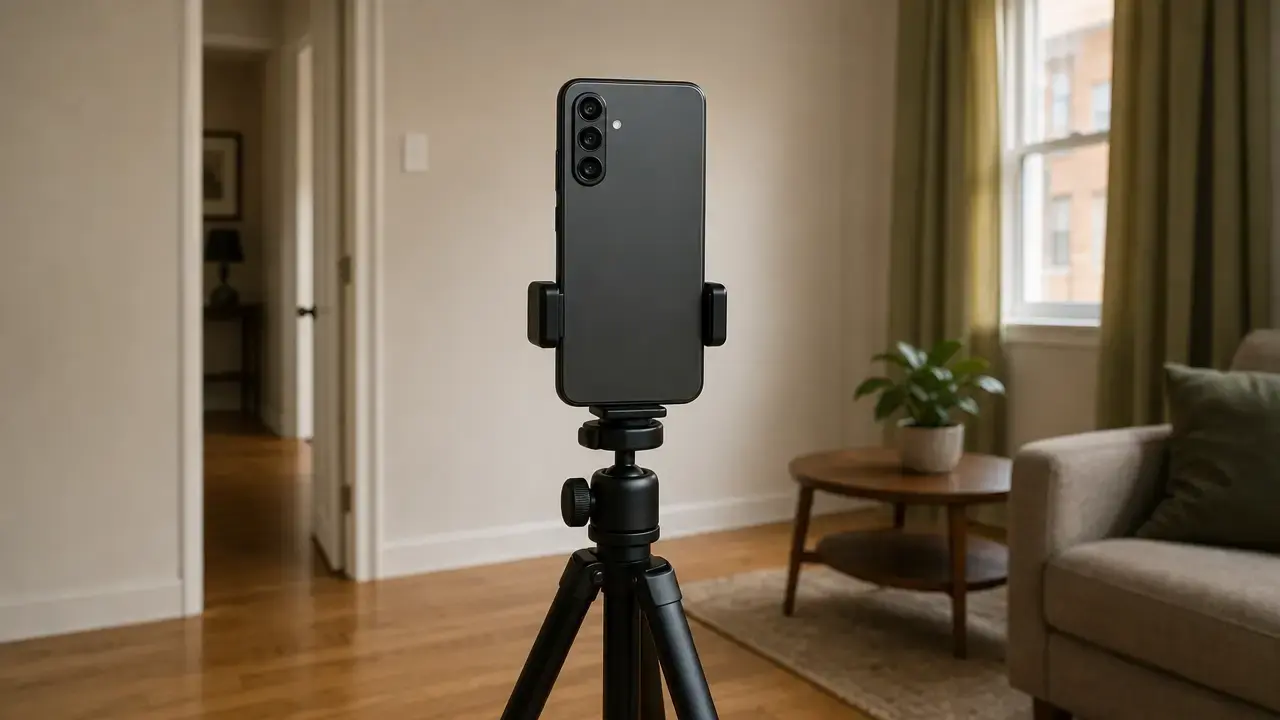
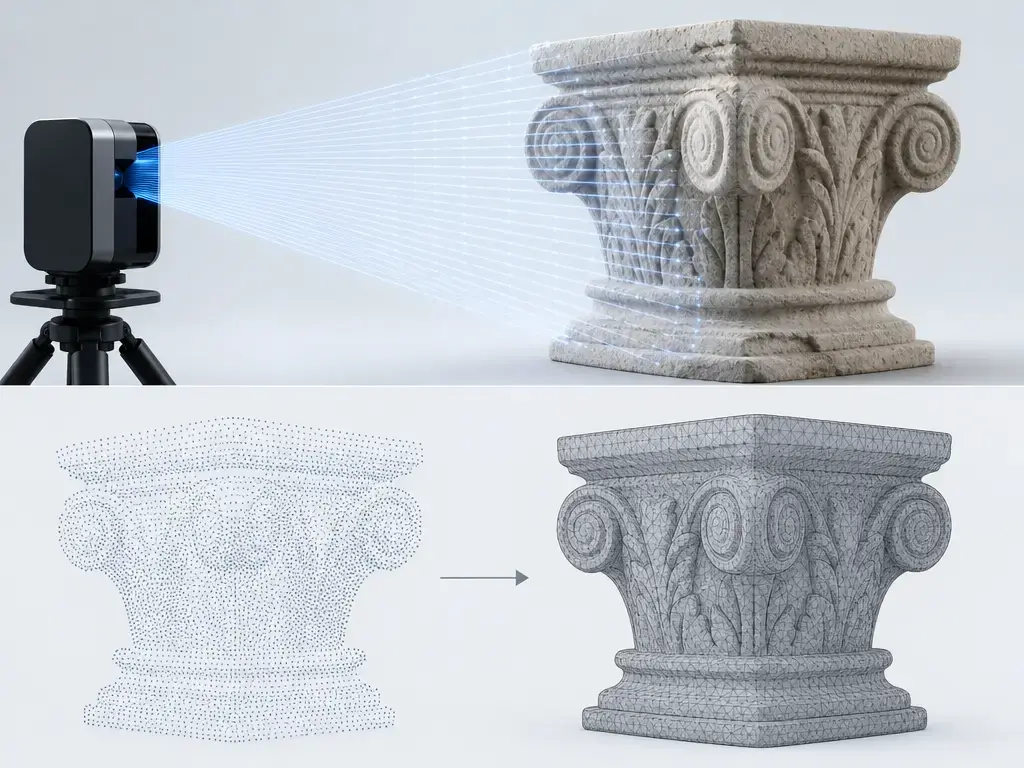
A phone scan follows a chain: the device captures views of an object, estimates camera poses and depth observations, combines those observations into a point cloud or fused surface, generates a mesh, and exports a file. The export is rarely a direct sensor dump. It is a reconstructed surface that the app has typically fused, filtered, simplified, hole-filled, or otherwise processed.
It helps to distinguish three data products. Raw sensor returns are the underlying measurements and are typically not directly available to end users. Platform depth outputs are the depth maps and confidence information an app can access through a platform API. In ARKit, depth-map pixels represent distance from the camera plane in metres, and a confidence map can help filter lower-confidence values. [2] In ARCore, depth is calculated from device motion and may be combined with hardware depth sensing such as time-of-flight, or ToF, where available; ToF is not required for Depth API support. [5] An app-generated mesh is the fused, post-processed surface exported as STL, OBJ, or sometimes 3MF.
Android depth maps may be expressed in metres and include confidence values from 0 to 255, with 255 representing the highest confidence. [6] ARKit scene depth can be available at 60 Hz, but that describes the depth stream—not a promised mesh-update rate, STL fidelity, or physical accuracy. [3] Not every iPhone has LiDAR, and some scanning apps require compatible hardware. 3D Scanner App, for example, lists LiDAR-equipped iPhone Pro or iPad Pro hardware as required. [7]
Room-scale capture should not be confused with small-part metrology. Apple positions RoomPlan around scanning residential rooms, not validating fit-critical printed components. [4]
LiDAR vs Android depth vs photogrammetry: which capture route fits your print?
These workflows differ mainly in how they observe shape and texture. Choose based on object size, surface appearance, coverage requirements, scale checks, and intended use rather than assuming one route is universally more accurate.
| Workflow type | Typical input | Best fit for | Print-specific cautions |
|---|---|---|---|
| iPhone/iPad LiDAR-assisted | Depth, RGB imagery, and device tracking fused into a mesh. | Larger-object capture, rapid shape studies, and rough prototypes. | Small features can soften. Validate scale and do not treat the result as metrology data. A 2021 study found performance depended strongly on object size and conditions. [14] |
| Android depth-assisted | Depth estimated from motion, with optional ToF input on some devices. [5] | Quick capture on a supported phone or tablet. | Device and app behaviour varies. Raw depth can be incomplete, while smooth depth may interpolate missing areas and be less accurate per pixel. [6] |
| Photogrammetry | Overlapping RGB photographs or video frames. | Textured objects and cases where visual surface detail can assist reconstruction. | Requires adequate overlap, stable lighting, an explicit scale reference, and processing time. |
Photogrammetry is a camera-based alternative, not automatically a more accurate option than depth-assisted capture. RealityScan Mobile is one example of a photo-to-model workflow available on iOS and Android. [9] Depth-assisted capture can be useful for rapid overall geometry, while photographs may help where surface texture provides strong visual features. Either route still requires scale verification before printing.
Scan-to-print workflow: capture → cleanup → validate → slice
A reliable scan-to-print workflow treats the mesh as a working model that must be checked after every operation that can alter geometry.
- Prepare the object and scene. Make the object stable, visible, and distinct from its background.
- Capture coverage. Move around the object deliberately and include transitions between sides, recesses, and edges.
- Reconstruct. Let the app create its initial point cloud or mesh.
- Scale and units checkpoint #1. Confirm export units, add or compare a reference measurement, and do not trust visual plausibility.
- Inspect coverage. Look for holes, merged surfaces, missing edges, and weakly observed areas.
- Crop and remove floaters. Delete floor, supports, background fragments, and disconnected noise.
- Repair topology. Close or rebuild defects as needed while preserving function-critical features.
- Export. Save a suitable mesh format and retain the original capture for later comparison.
- Import and verify in the repair tool and slicer. Recheck size, orientation, connected shells, and feature survival in the downstream tools.
- Slice, test print, and measure function. Print a trial when needed, then compare critical dimensions and fit with the physical object or mating part.
Before capture, check:
- Stable lighting.
- A matte or feature-rich surface, when safe.
- A stationary object.
- Avoidance of glass, mirrors, and very dark surfaces where possible.
- A plan for capturing the underside.
- A scale reference or independent reference measurement.
- Clear separation between the object and background.
- Sprays or markers only with permission and material compatibility.
Mirrors, glass, and very dark surfaces are illustrative optical and depth-capture challenges noted by Apple for RoomPlan’s room-scale context; they are not small-object scanning specifications. [4] Cropping, floater removal, smoothing, remeshing, and decimation are geometry edits, not merely cosmetic cleanup. Re-measure relevant features after performing them.
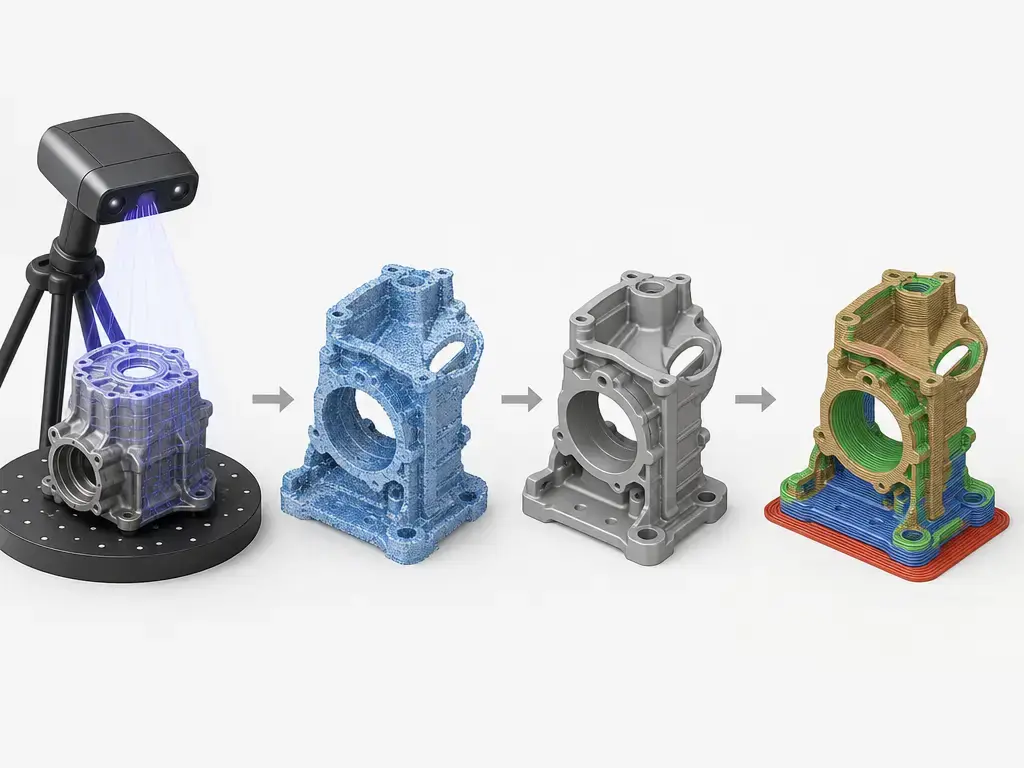
Scale & units: establish scale, then verify it again
STL is unitless: it contains no scale or unit information. [12] An app, repair tool, and slicer can therefore interpret identical coordinate values at different intended scales. A scan that looks proportionate on screen may still import unexpectedly tiny or giant, so visual plausibility does not establish correct physical dimensions.
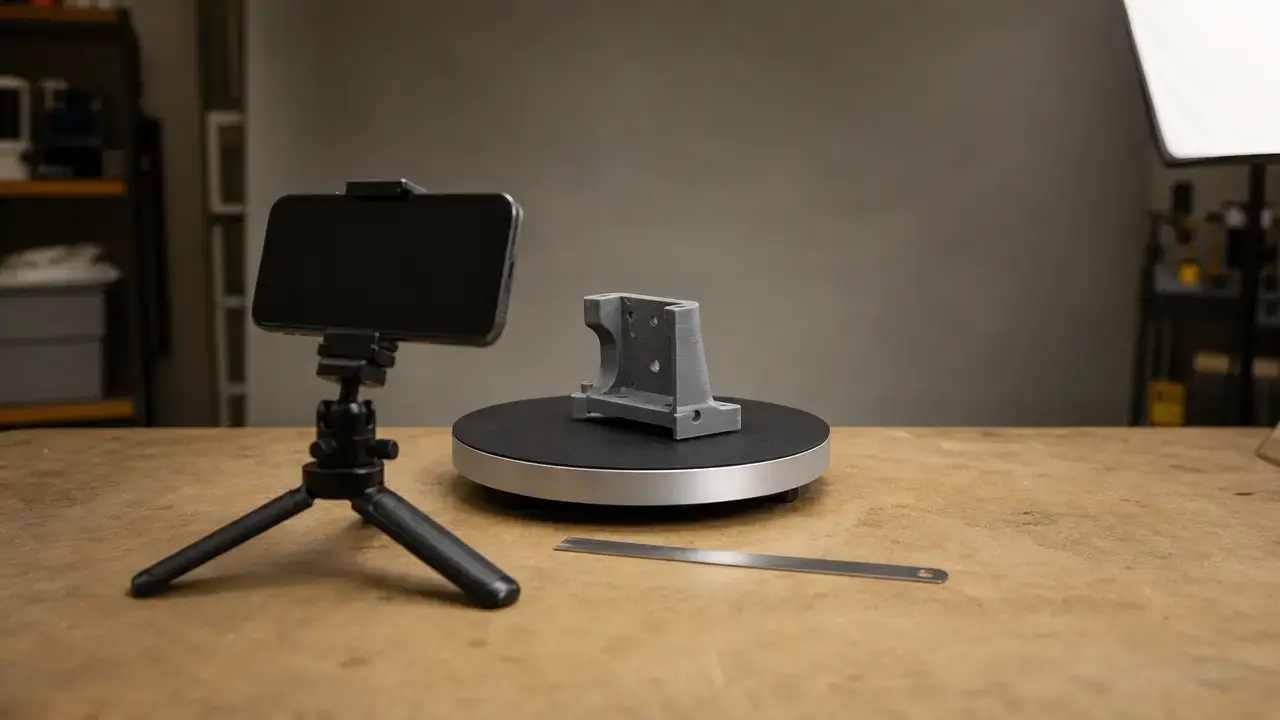
For photogrammetry, include a known-distance reference or marker in the capture, or rescale the reconstructed mesh from caliper measurements. With depth-assisted capture, platform depth values in metres do not prove that the final app-generated mesh has the correct scale. ARKit depth values describe distance from the camera plane, while ARCore depth is motion-derived and may incorporate optional hardware sensing. [2] [5] Compare the exported mesh with real measurements regardless of capture route.
Scale and units checkpoint #2: after importing an STL into a repair tool, and again after importing it into the slicer, measure two or three known features, confirm the assumed units, and only then continue. 3MF stores declared model units, with millimetres as the default, so it can reduce tiny-or-giant import surprises where supported. [11]
Mesh validity for slicers: watertight vs manifold vs “still broken”
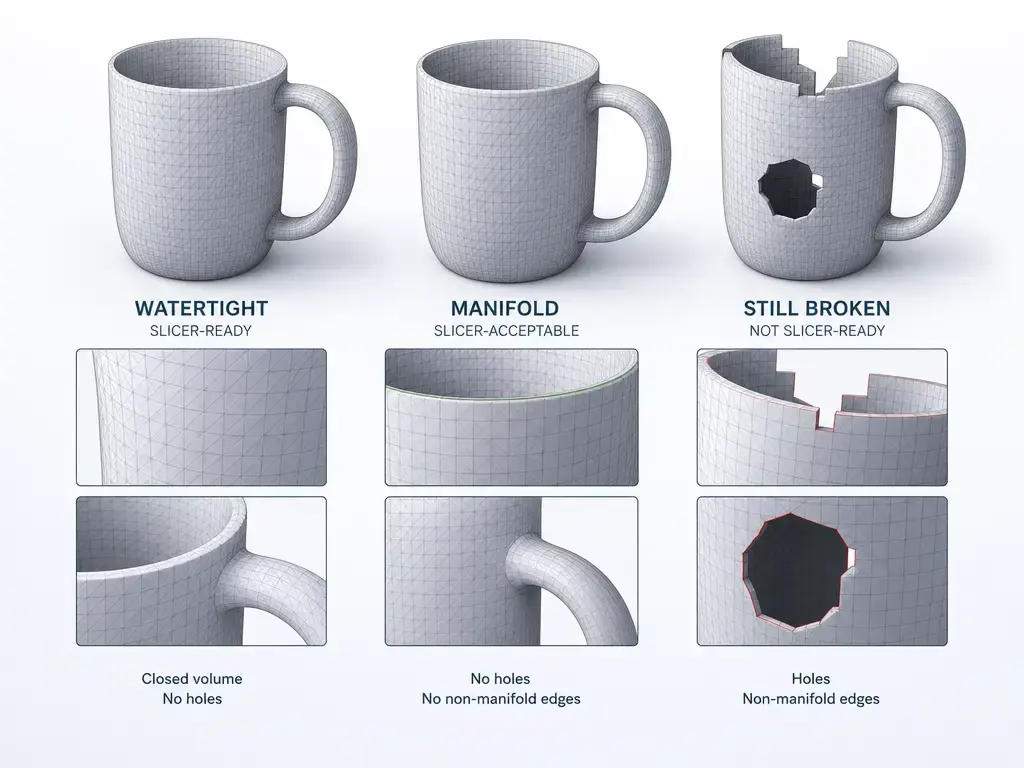
A watertight mesh is an intended shell with no open boundaries. A manifold mesh has topology that behaves consistently, without non-manifold edges or vertices. The terms are related but not synonymous: a visually closed object can still contain defects that confuse repair tools or slicers.
A mesh can look complete while faces intersect, duplicate surfaces lie inside the part, normals point inconsistently, or regions collapse to zero thickness. Conversely, a manifold result may still have self-intersections or unwanted internal faces. For practical printing, every intended solid should behave as a consistent manifold volume so the slicer can interpret it predictably. [17]
Check for:
- Open edges or holes.
- Flipped normals.
- Non-manifold edges.
- Self-intersections.
- Internal or duplicate faces.
- Zero-thickness regions.
- Disconnected shells.
Blender’s 3D Print Toolbox includes Make Manifold, which attempts to address bad normals, holes, and empty edges or faces. [16] It is an automated repair attempt, not proof that the original geometry remains unchanged. Re-run mesh checks and remeasure critical features after repair, especially before printing a functional part. Wall thickness, supports, orientation, shrinkage, anisotropy, and final fit remain dependent on the printing process and material.
Performance metrics: how to validate accuracy without guessing
Validation has two independent stages. First, establish mesh validity: confirm that exported geometry has sensible scale, usable topology, and no defects that make measurement meaningless. Second, validate the printed part dimensionally and functionally against the original object or its mating features. A sound mesh can still produce a poor-fitting print because printing introduces process- and material-dependent effects.
| Concept | Meaning |
|---|---|
| Signed error | Direction-sensitive difference between a measured value and a reference; it shows whether a result is oversize or undersize. |
| Absolute error | Magnitude of the difference, ignoring direction. |
| RMSE | Root mean square error; an aggregate metric that gives larger deviations more influence. |
| Precision or repeatability | Agreement among repeated captures or measurements of the same feature. |
| Print deviation | Difference between the final printed part and the target after printing-process and material effects. |
There is no reliable universal figure found for phone-scan accuracy. Results vary with device, app, object size, distance, surface properties, capture path, lighting, reconstruction settings, and the location of the measured feature. NIST notes that a single accuracy number can be inadequate when performance changes with position and distance, and that pixel-count-based lateral resolution does not necessarily identify the smallest distinguishable feature. [15]
As context only, a 2021 Scientific Reports study of the iPhone 12 Pro and iPad Pro LiDAR workflow reported ±1 cm absolute accuracy for small objects with side lengths above 10 cm under its test conditions. The study also reported roughly 1 cm precision error, declining precision for surfaces below 10 cm, and a detection limit around 5 cm. [14] Those results are not a promise for another app, object, distance, or reconstruction pipeline. A controlled phantom study likewise reported different mean absolute errors among evaluated mobile-app workflows, including 4.4 mm for 3D Scanner App, 5.0 mm for Kiri, and 21.4 mm for Polycam. These results illustrate that app and workflow choices can matter under a particular study setup. [18]
“It looks great, but it won’t print (or won’t fit)” troubleshooting
Most scan-to-print failures are diagnosable through targeted recapture, cautious repair, and measurement. Avoid blind smoothing or repeated automatic repair without checking whether the operation altered the features that matter.
| Symptom | Likely cause | Recapture or repair action | Validation step |
|---|---|---|---|
| Wrong overall size | STL unit mismatch. | Set the intended units or rescale from a physical reference. STL stores no unit or scale information. [12] | Measure a known feature in the repair tool and again in the slicer. |
| Holes, especially on the underside | Occlusion or insufficient viewing angles. | Make a second scan, or flip the object and capture the concealed area, then merge or repair as appropriate. | Recheck that the intended shell is watertight. |
| Melted or rounded edges | Excess smoothing or decimation. | Reduce smoothing; remesh carefully only when necessary. | Re-measure edges and other function-critical features. |
| Lumpy or warped surface | Reflective, featureless, or low-light capture conditions. | Change lighting and background; add safe, removable texture aids only if allowed; repeat capture and compare. Glass, mirrors, and dark surfaces are illustrative RoomPlan challenges, not small-object specifications. [4] | Compare repeated captures with physical measurements. |
| Slicer errors or non-manifold warnings | Broken topology. | Run mesh checks and repair the affected geometry. | Re-run checks and make a test slice. Automated repair requires renewed inspection. [16] A printable solid should behave as a manifold volume. [17] |
When phone scanning is a good idea — and when to escalate
Phone scanning is well suited to decorative replicas, props, terrain and other organic shapes, ergonomic references, and space-planning mockups. In these uses, overall form, visual resemblance, and relative proportions can matter more than tightly controlled dimensions. A phone scan can also provide a practical starting model for CAD work when the original object is difficult to measure comprehensively by hand.
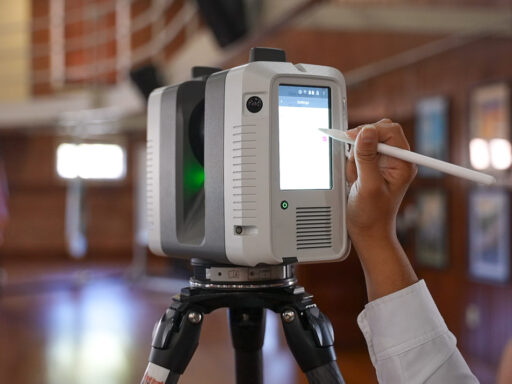
For brackets, adapters, enclosures, and other mating parts, use the scan as reference geometry, then measure and redesign critical mating features in CAD. Phone scanning is not a substitute for calibrated metrology scanning when inspection or tolerance-critical reverse engineering is required. If uncertainty is unacceptable or verification must be traceable, use suitable verification methods and, where appropriate, dedicated equipment. NIST’s discussion of optical 3D measurement explains why performance cannot be reduced to one resolution or accuracy number. [15] Safety-critical, medical, and intellectual-property-sensitive items require appropriate professional and legal controls.
Decision guide: choosing a 3d scanner app for 3d printing
If surface texture and thorough photo coverage are available, use photogrammetry as a photo-to-model route. RealityScan Mobile is an example available on both iOS and Android. [9] If fast capture of a larger object or room-context geometry matters, consider LiDAR-assisted capture on compatible hardware. If using Android depth, evaluate the specific device and app because ARCore derives depth from motion and may, but does not have to, use ToF data. [5] Compare raw and smoothed outputs where possible, because interpolation can produce a complete-looking result that is less faithful to the underlying depth estimates. [6]
A 3d scanner app for 3d printing should fit the intended export and repair workflow, not just the capture stage. STL is geometry-oriented and does not store colour or other material and property information. [10] Where supported, 3MF can make scale handling clearer through declared units. [11] Choose the workflow that yields a mesh whose units, scale, topology, and print outcome you validated.
FAQ
These answers prioritize a validated scan-to-print workflow over app rankings. The useful question is not which phone or app is “best,” but whether the selected route provides sufficient coverage, correct scale, sound topology, and a printed result that meets the intended visual or functional requirement.
What is the best 3d scanner app for 3d printing?
There is no universal winner. The appropriate workflow depends on object size, surface texture, available hardware, coverage requirements, scale handling, and the consequences of dimensional error. Choose an app and capture route that lets you inspect the mesh, establish scale, repair defects cautiously, and test the printed result. For fit-critical work, independently measure mating features and redesign them in CAD rather than trusting the scan alone.
How do you scan an object with a phone and export STL for 3d printing?
Capture complete coverage, reconstruct the mesh, and complete the first scale-and-units checkpoint. Clean away background fragments and floaters, inspect holes and topology defects, then export the mesh and import it into repair software and the slicer. STL is unitless, so verify the assumed units in both tools rather than trusting its appearance. [12] Finally, slice a test print and measure the result where fit or function matters.
iPhone LiDAR 3D scanner app: how accurate is it for 3D printing?
There is no reliable universal figure found. A 2021 study of an iPhone 12 Pro and iPad Pro LiDAR workflow reported ±1 cm absolute accuracy for objects larger than 10 cm under its own test conditions, while precision decreased for surfaces below 10 cm. [14] That result is contextual, not a guarantee for another app, object, capture distance, lighting condition, reconstruction setting, or printed part. Validate the dimensions relevant to your own use.
Android 3D scanning app for 3D printing: what resolution can you get?
Sensor or platform depth resolution, reconstructed mesh density, and the smallest printable feature are different measures. ARCore depth is derived from motion and may use ToF input, but ToF is optional and device support varies. [5] Raw depth can be incomplete while retaining more accurate estimates, whereas smooth depth may fill gaps through interpolation and alter detail. [6] Check whether important edges survive reconstruction, then test print them when necessary.
How do you do 3D scan mesh cleanup for STL printing?
Remove background geometry and disconnected floaters first, then inspect holes, normals, non-manifold edges, self-intersections, duplicate faces, internal surfaces, and thin regions. Watertightness and manifoldness are distinct checks. Blender’s Make Manifold can address normals, holes, and empty edges or faces, but it may change geometry. [16] Re-run checks and remeasure critical features afterward; intended printable solids should behave as manifold volumes. [17]
Photogrammetry app for 3D printable models: how do you avoid holes and noise?
Use overlapping photographs with stable lighting, a stationary object, and a capture plan that includes recesses and the underside. Include a scale reference or known measurement so the reconstructed model can be scaled and checked. Separate the object visually from the background where practical, and avoid aggressive cleanup that rounds functional edges. After reconstruction, inspect weakly covered regions, remove noise cautiously, and compare important mesh dimensions with the physical object.
How do I report scan error properly without misleading myself?
Report the reference object or measurement method, capture setup, object characteristics, and evaluated features. Use signed error to show direction, absolute error for magnitude, RMSE to give larger deviations more weight, and repeatability for agreement across repeated scans. Report printed-part deviation separately because printing adds process and material effects. A single accuracy or resolution number can mislead when performance varies across positions, distances, and feature types. [15]
Why can two scans be repeatable but still inaccurate?
Repeatability means repeated scans agree with each other; it does not prove that they agree with the real object. Systematic scale bias, STL unit mismatch, consistent smoothing, or a repeated capture-path limitation can produce similar but incorrect meshes. Validate against independent physical measurements and reference features, not merely another scan. Single summary metrics can conceal location-dependent error, so document the reference and measurement setup. [15]
Sources
Sources include standards, platform documentation, manufacturer documentation, and contextual studies. Device- and app-specific results are not universal guarantees.
- ISO/ASTM 52900:2021 — Additive manufacturing fundamentals and vocabulary
- Apple Developer Documentation — ARDepthData
- Apple WWDC20 — Explore ARKit 4
- Apple WWDC22 — Create parametric 3D room scans with RoomPlan
- Google ARCore — Depth developer guide
- Android Developers — Jetpack XR ARCore Depth
- 3D Scanner App — Help
- Polycam — 3D LiDAR scanner and reconstruction tool
- RealityScan — RealityScan Mobile
- 3MF Consortium — FAQ
- 3MF Consortium — Core Specification
- Golden Software — STL StereoLithograph 3D Mesh File Description
- ISO/ASTM 52915:2020 — Additive manufacturing file format
- Luetzenburg et al. — Evaluation of the Apple iPhone 12 Pro LiDAR for small-object scanning
- NIST — Verification and performance concepts for optical 3D measurement systems
- Blender Manual 4.1 — 3D Print Toolbox
- Prusa Knowledge Base — Modeling with 3D Printing in Mind
- Mobile 3D imaging apps accuracy study