
Summary
The best laptop for 3d printing is the one that meets the requirements of the most demanding software in your regular workflow, whether that is a slicer, CAD application, or 3D modeling and rendering tool.
Additive manufacturing builds physical three-dimensional geometries through the successive addition of material. [1] For laptop selection, that usually leads to three routes: slicer-first, CAD-capable, and creator-class. A stronger laptop can make modeling, slicing, previewing, and file management more practical, but it does not improve a printer’s dimensional accuracy, extrusion quality, or mechanical condition.
How to Choose a Laptop for 3D Printing
This is a configuration-selection guide based on documented software requirements, not a cross-laptop performance ranking. Start with the application that places the highest regular demand on your system: PrusaSlicer provides a slicer baseline, Autodesk Fusion a CAD baseline, and Blender a more demanding modeling and rendering baseline. [9] [11] [13]
Buy for the highest regular workload, not only for today’s print queue. A slicer-first system can prepare models and generate printer instructions, while CAD and 3D-modeling work require more attention to memory, processor performance, and graphics compatibility. When a requirement cannot be verified in reliable documentation, it should be treated as “no reliable figure found,” rather than inferred from a similar application.
The 3D-Printing Software Workflow: Model → Slice → Toolpath → Job Transfer
CAD and modeling applications create a part’s geometry: dimensions, surfaces, solids, assemblies, or sculpted forms. A slicer converts that geometry into a print-specific plan based on the selected printer, material, nozzle, and process settings.
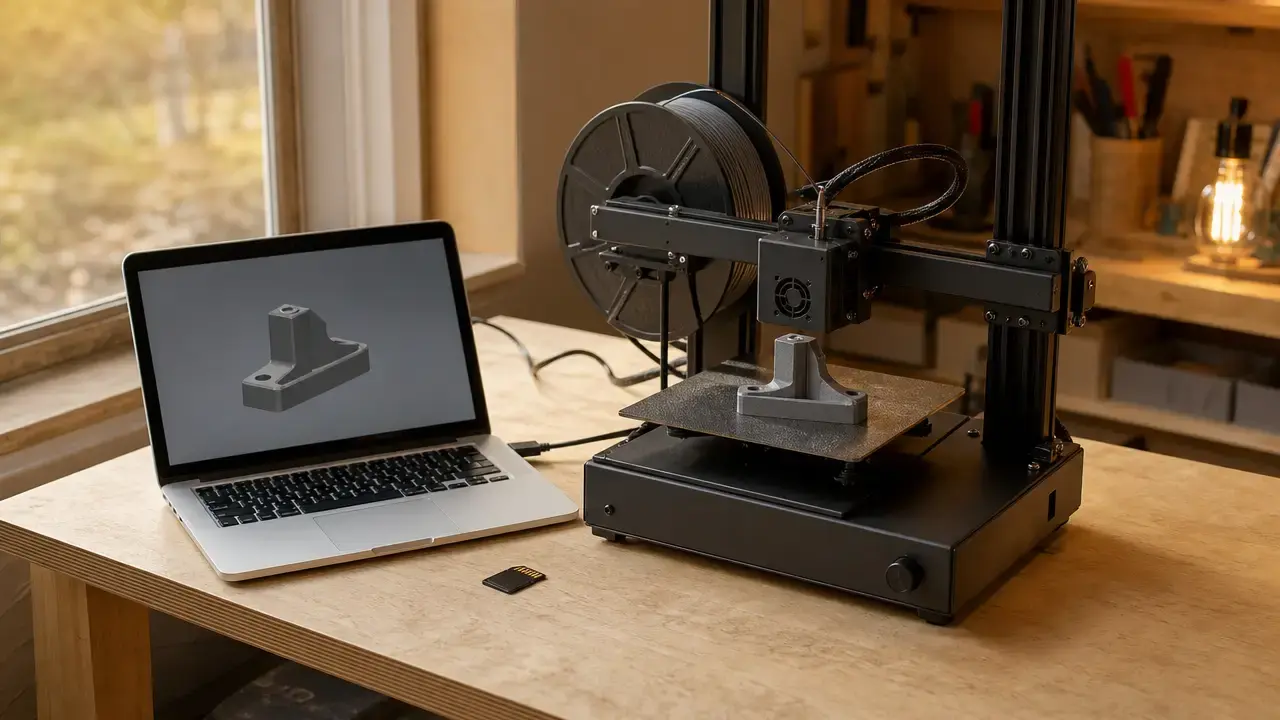
The slicer divides the model into layers and calculates a toolpath: the ordered movements and material-deposition instructions used to form those layers. The printer does not directly execute the original model file. It executes a prepared printer job, transferred through removable storage, a network connection, a cloud service, or another supported route. NIST identifies slicing, path planning, scan control, and simulation as distinct additive-manufacturing software activities. [2]
Tasks your laptop may handle before a print starts:
- Creating or editing part geometry in CAD or modeling software.
- Importing, repairing, orienting, and arranging models on a virtual build plate.
- Selecting material and process settings, including supports and layer strategy.
- Slicing the model into layers and calculating toolpaths.
- Previewing the prepared job for gaps, unwanted support, or setup errors.
- Saving and transferring the final printer job.
Dense meshes, larger CAD projects, complex geometry, and several open applications can slow this preparation stage. They do not directly determine the printer’s physical output quality.
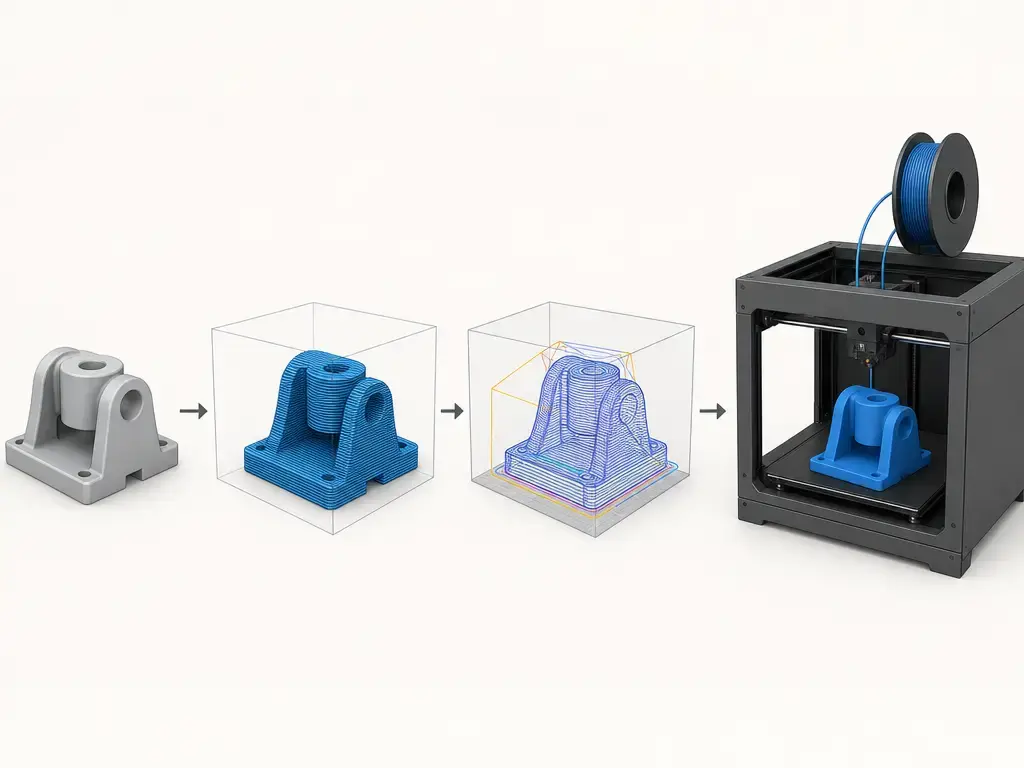
File Types That Matter: STL vs 3MF vs Project Files
STL is a widely used model-exchange format that represents a surface as a triangular mesh. Its facets store triangle vertex coordinates and normal-vector components, but the format has no standard method for supporting multiple colors. [3] It is useful for moving basic geometry into a slicer, but it generally carries less manufacturing context than a richer package.
3MF is standardized as ISO/IEC 25422:2025 and is intended to support fuller-fidelity 3D model exchange across applications, services, and printers. [4] [5] A 3MF document uses a ZIP archive containing model resources and build information, allowing it to package more than a simple mesh when the workflow supports those features. [6]
A model is not the toolpath.
Project files belong to the CAD, modeling, or slicer application that created them. They may retain editable geometry, layouts, modifiers, settings, or project history. After slicing, exported G-code or another printer job is the machine-oriented result and is generally less suitable for design edits. STL or 3MF alone does not determine laptop requirements; geometry complexity, slicer settings, CAD work, rendering, and the number of applications in use matter more.
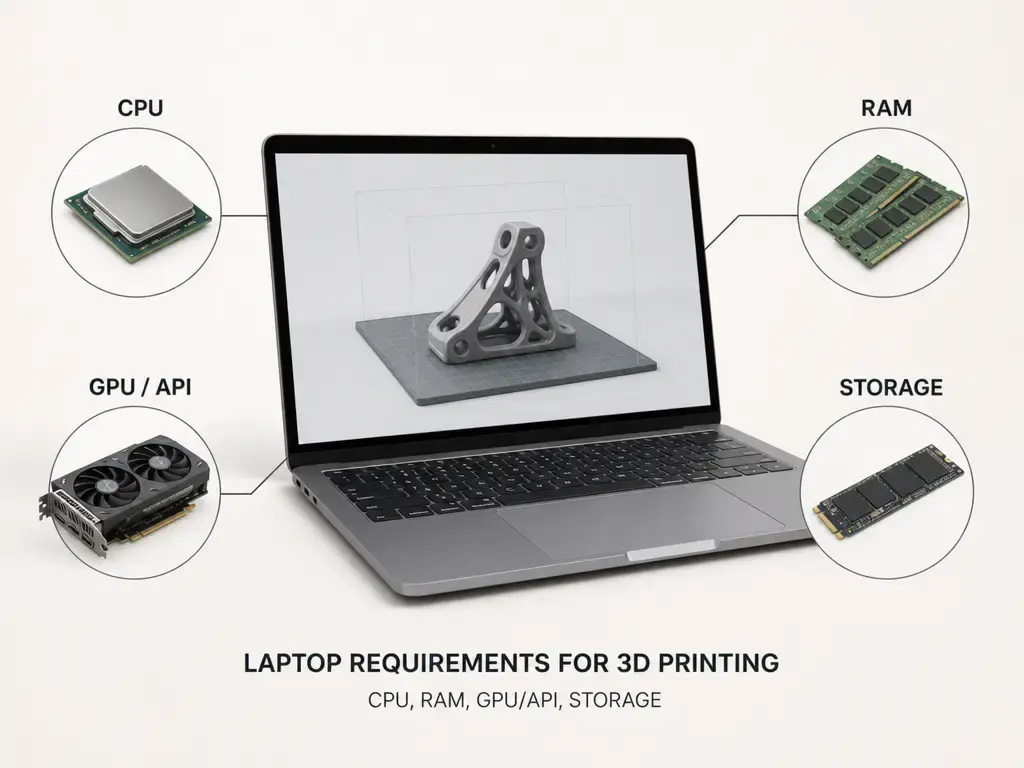
Laptop Requirements for 3D Printing: CPU, RAM, GPU/API, Storage
CPU and RAM requirements depend on the application. PrusaSlicer says many computations are multi-threaded and benefit from multiple cores or threads; it lists 4 GB of RAM as a minimum and 8 GB or more as recommended. [9] Autodesk Fusion for Windows lists 8 GB as a minimum and 32 GB or more as recommended, while noting that toolpath generation and simulation are multi-threaded. [11] Blender lists 8 GB of system memory as a minimum and 32 GB as recommended. [13] These are application-specific requirements, not interchangeable laptop targets.
Graphics requirements need separate interpretation. For slicers, graphics API and driver compatibility come first for displaying models and toolpath previews. PrusaSlicer requires OpenGL 2.0 or newer. [9] Cura’s underlying Uranium framework reports that Cura requires OpenGL 2.0 or higher and probes OpenGL 2.0 and 4.1 contexts. [8] Fusion on Windows requires a DirectX 12-capable GPU; Autodesk recommends a discrete GPU with 8 GB or more graphics memory for larger or more complex designs. [11] Blender lists a minimum of 2 GB of video memory with OpenGL 4.3 and Vulkan 1.3, with 8 GB of video memory recommended. [13]
GPU importance rises sharply for Blender GPU rendering, which depends on compatible CUDA, OptiX, HIP, oneAPI, or Metal support rather than video-memory capacity alone. [14] SSD storage is primarily a capacity and workflow consideration for the operating system, software, project files, model libraries, and backups. No reliable figure found supports a universal SSD-capacity target for 3D-printing work.
Prioritize these specifications in this order:
- Confirm that the required software and operating system are supported.
- Choose CPU and RAM for the most demanding program used regularly.
- Check the graphics API required for slicer previews and CAD viewports.
- If using Blender rendering, select a GPU and rendering backend supported by Blender.
- Choose practical SSD storage for applications, projects, and backups.
- Leave headroom for multi-application work and larger future projects.
A listed minimum means software is supported under stated conditions; it does not necessarily describe a comfortable multi-application purchase.
Software Requirements Snapshot: Cura vs PrusaSlicer vs Fusion vs Blender
The figures below are published application requirements, not universal laptop specifications. They apply only to the stated software and platform context.
| Software and OS scope | Documented minimum or recommended | Buying interpretation | Key compatibility gotcha |
|---|---|---|---|
| Cura, platform scope not consolidated here | Cura’s framework reports a requirement for OpenGL 2.0 or higher and probes OpenGL 2.0 and 4.1 contexts. [8] | Treat graphics-preview support as a compatibility check, not a measure of rendering performance. Cura RAM, storage, and display figures: no reliable figure found. | An otherwise capable laptop can still have a graphics-driver or OpenGL issue affecting Cura’s preview. [8] |
| PrusaSlicer, published general requirements | Minimum: 4 GB RAM and OpenGL 2.0 or newer. Recommended: 8 GB RAM or more. Many computations are multi-threaded. [9] | A slicer-first laptop should at least meet the recommended memory figure when a browser or other applications remain open. | OpenGL support matters more than a high-end discrete GPU for ordinary preview use. [9] |
| Autodesk Fusion, Windows requirements | Minimum: 8 GB RAM and a DirectX 12-capable GPU. Recommended: 32 GB RAM or more. Autodesk recommends a discrete GPU with 8 GB or more graphics memory for larger or complex designs. [11] | CAD users should place more weight on memory, CPU, and viewport graphics than slicer-only users. | Windows on ARM may run Fusion through x64 emulation, but Autodesk says that configuration has not completed Fusion certification. [11] |
| Blender, Windows and Linux requirement tables | Minimum: 8 GB RAM; 2 GB VRAM with OpenGL 4.3 and Vulkan 1.3. Recommended: 32 GB RAM and 8 GB VRAM. [13] | Modeling and especially rendering justify a stronger graphics configuration than basic slicing. | GPU rendering depends on supported backends such as CUDA, OptiX, HIP, oneAPI, or Metal, not VRAM alone. [14] |
Cura deserves particular caution because the accessible documentation establishes its OpenGL behavior but not comparable official RAM, disk-space, or display figures. No reliable figure found for those categories. This is a documented-requirements snapshot, not a published cross-laptop benchmark.
Laptop for CAD and 3D Printing: Fusion as the Documented Baseline
A laptop selected only around slicer minimums can be restrictive for regular Autodesk Fusion work. Slicing commonly prepares an existing model for printing, while CAD can involve parametric feature histories, assemblies, drawings, imported geometry, manufacturing operations, and sustained viewport work before a part reaches the slicer.
For Windows, Fusion lists 8 GB of memory as a minimum and 32 GB or more as recommended. It specifies an Intel 8th-generation Core i3 or newer, or AMD Ryzen 3000-series or newer, as the minimum processor level. Its recommended processor guidance names Core i7, Core Ultra 7, Ryzen 7, Ryzen AI 7, or better. Fusion also requires DirectX 12 compatibility on Windows, while Autodesk recommends a discrete GPU with 8 GB or more graphics memory for larger or complex designs. [11]
For macOS, Fusion lists 16 GB or more memory as recommended. [11] Do not apply the Windows DirectX or discrete-GPU guidance directly to Macs. Autodesk states that Fusion will require Apple silicon beginning with the March 30, 2027 release. [12]
Windows vs macOS vs Linux for 3D Printer Software
Choose an operating system according to the applications, printer ecosystem, file-transfer method, drivers, and plug-ins you need. No platform is automatically best for every maker. Cura 5.13 provides packages for Intel-based Macs, Apple Silicon Macs, Windows, and Linux through an AppImage. [7] Package availability does not guarantee that every printer manufacturer’s desktop tool, driver, network feature, or plug-in is supported on the same operating system.
PrusaSlicer documentation lists 64-bit Windows, macOS, standard Linux distributions, and ChromeOS with Debian support as available environments, though support notes should be checked again before purchase or installation. [9] Blender’s platform requirements are more specific: Blender 4.5 LTS is the last release supporting Intel Macs, while Blender 5.0 and later require Apple Silicon with macOS 13 or later. Blender’s Linux requirements specify glibc 2.28 or newer. [13] Fusion will require Apple silicon beginning with the March 30, 2027 release. [12]
A Note on Windows on ARM
Windows on ARM is a separate compatibility case. Fusion may run through x64 emulation, but Autodesk states that this configuration has not completed Fusion certification. Confirm support for the CAD application, slicer, printer driver, plug-ins, and transfer utility before buying. [11]
Recommended Laptop Types: Configuration Classes, Not “The One Best Laptop”
Slicer-first. For Cura or PrusaSlicer with occasional basic edits, meet the slicer’s supported operating-system and graphics requirements. PrusaSlicer specifies 4 GB RAM as its minimum, 8 GB or more as recommended, and OpenGL 2.0 or newer. [9] The tradeoff is limited headroom if CAD projects, dense meshes, or several open applications become routine.
Fusion-first. For frequent parametric part design, assemblies, and manufacturing preparation, use Fusion’s platform-specific requirements as the floor. On Windows, Fusion lists 8 GB RAM as a minimum and 32 GB or more as recommended, plus DirectX 12 compatibility. Larger designs may justify Autodesk’s recommended discrete GPU with 8 GB or more graphics memory. [11] This class of laptop may be larger, heavier, or higher-power than a slicer-only workflow requires.
Blender plus printing. For modeling, sculpting, animation, or rendering alongside slicer work, Blender lists 8 GB RAM and 2 GB VRAM as minimums, with 32 GB RAM and 8 GB VRAM recommended. [13] A compatible rendering backend remains essential. [14] Regular GPU rendering can place greater demands on cooling, power, and portability than ordinary slicing.
Mobile multi-app. For school, workshop, or travel use involving CAD, slicing, documentation, and browser research, prioritize memory headroom and practical storage after meeting the requirements of the most demanding application. Thin systems can be convenient, but sustained calculations and rendering may impose different thermal constraints than short slicer sessions.
Illustrative, time-stamped configurations show available classes rather than performance winners. Dell’s U.S. XPS 16 page lists a configuration with a 16-core Intel Core Ultra 7 358H, 32 GB LPDDR5X memory, 1 TB SSD storage, and Intel Arc graphics. [15] ASUS lists the ProArt P16 H7606 with up to 64 GB LPDDR5X memory, up to 4 TB PCIe 4.0 SSD storage, up to a Ryzen AI 9 465 processor, and up to an RTX 5090 Laptop GPU. [16] Apple lists MacBook Pro configurations with 16 GB, 24 GB, or 32 GB unified memory and 1 TB SSD options, among higher configurations. [17]
Examples are not benchmark winners; recheck SKU configuration on publication day.
Printer Ecosystem Compatibility Checklist
Laptop specifications alone do not guarantee a working print workflow. The slicer needs an appropriate printer profile, the printer must accept the prepared job format, and the transfer route must work with the chosen operating system and local network. Vendor desktop software, cloud services, firmware revisions, and optional accessories can create further compatibility boundaries.
Before buying or changing platforms, check:
- Official profile: Does the printer model, nozzle, material system, and accessory configuration have an official or well-maintained slicer profile?
- Accepted job format: Does the printer accept standard G-code, a 3MF project, or a vendor-specific printer job file?
- Transfer method: Does the workflow use SD or USB storage, LAN or Wi-Fi transfer, cloud services, or more than one method?
- Vendor desktop needs: Do setup, firmware updates, monitoring, camera access, or file transfer require a vendor desktop application or browser-supported service?
- Advanced-feature boundaries: Which functions remain available with third-party slicers, including calibration, material systems, remote control, and printer-specific process settings?
Bambu Lab provides one example rather than a universal rule. Its X1-Carbon documentation says that third-party slicers can export standard G-code, including Cura and PrusaSlicer, but notes that certain advanced features may not be supported. [18] Bambu Lab has also said that a suitable printer profile can enable third-party slicer use while some functions, such as in-print actions, can be harder to activate. [19] Its authorization-control and Bambu Connect material also illustrates that third-party integration details can change over time. [20]
Buying Mistakes to Avoid
A common mistake is buying to the minimum requirement for one slicer while expecting smooth CAD, browser, reference-image, and slicer use simultaneously. A published minimum establishes stated support, not an ideal multi-application experience.
Treat low-memory, soldered, or non-upgradable configurations carefully if your workflow may expand. A lower-memory purchase can become limiting when projects grow or when CAD, slicing, documentation, and browser tabs remain open together. Thin chassis designs can also have sustained-performance tradeoffs that should be checked in independent reviews rather than inferred from a processor name.
Do not assume that “has graphics” means every program will work as intended. Cura’s preview depends on OpenGL compatibility. [8] Fusion on Windows requires DirectX 12, and Autodesk’s higher graphics recommendation applies specifically to larger or complex Fusion designs. [11] Blender lists OpenGL 4.3 and Vulkan 1.3 graphics requirements, while GPU rendering has separate backend requirements. [13] A 2019 PrusaSlicer troubleshooting discussion described high memory use in one dense project, but it is a dated anecdote rather than a current requirement or performance measurement. [10]
Publication-Day Verification Checklist
Software requirements, operating-system support, printer integration rules, and laptop SKU configurations can change between research, publication, and purchase. Recheck the exact workflow rather than relying on a laptop family name or an older product page.
- Fusion: Recheck Autodesk’s system-requirements page, its update date, and supported operating-system builds. The cited page was updated October 20, 2026. [11]
- Blender: Confirm current release requirements, operating-system support, graphics API requirements, and GPU-rendering compatibility for the intended platform. [13]
- Cura: Use the official download page to confirm a package for the chosen operating system. If Cura RAM, storage, and display figures cannot be verified from an accessible official page, retain “no reliable figure found.” [7]
- Dell: Verify the exact U.S. XPS 16 SKU’s processor, memory, SSD, graphics, ports, and operating system. [15]
- ASUS: Confirm the actual ProArt P16 SKU because “up to” specifications do not describe every configuration. [16]
- Apple: Recheck current MacBook Pro chip, unified-memory, storage, and external-display options. [17]
- Printer vendor: Verify profiles, accepted job formats, transfer paths, firmware expectations, authorization controls, and third-party workflow limits. [20]
Conclusion — Choosing the Best Laptop for 3D Printing
The best laptop for 3d printing is configured for the most demanding task in your regular workflow, rather than the slicer you happen to open most often. Slicer-first work, regular Fusion design, and Blender modeling or rendering place different demands on CPU, RAM, graphics compatibility, storage, and operating-system support. Confirm the specific software, printer profile, job format, and transfer route before purchasing. A capable laptop improves the digital workflow around a print, while calibration, material choice, machine condition, and process settings remain separate parts of the physical result.
FAQ
What is the best laptop for 3D printing?
There is no universal product choice. Select a configuration for the most demanding program used regularly: slicer-focused work, Autodesk Fusion CAD, or Blender modeling and rendering. Then verify operating-system compatibility, graphics API support, printer-profile availability, and the intended job-transfer method.
What are the laptop requirements for Cura and PrusaSlicer?
PrusaSlicer lists 4 GB RAM as a minimum, 8 GB or more as recommended, and OpenGL 2.0 or newer for graphics support. It also says many computations benefit from multiple CPU cores and threads. [9] Cura’s framework indicates that Cura requires OpenGL 2.0 or higher. [8] No reliable figure found for Cura RAM, storage, or display requirements in the accessible official material. Cura 5.13 packages are listed for Windows, Linux, Intel Macs, and Apple Silicon Macs. [7]
Do I need a dedicated GPU for 3D printing software?
Not necessarily for ordinary slicer use. For Cura and PrusaSlicer, graphics API and driver support matter first for model and toolpath previews. [8] [9] A dedicated GPU becomes more relevant for larger Fusion designs on Windows and for Blender work, especially Cycles GPU rendering. Blender rendering depends on compatible CUDA, OptiX, HIP, oneAPI, or Metal support, not just VRAM capacity. [11] [14]
How much RAM do I need for Autodesk Fusion if I also 3D print?
For Windows, Autodesk Fusion lists 8 GB as a minimum and 32 GB or more as recommended. [11] For macOS, Autodesk lists 16 GB or more as recommended. [11] If you routinely keep Fusion, a slicer, a browser, and project references open together, the recommended figure is the more useful documented starting point than the minimum.
Is Windows on ARM a good choice for Fusion + slicing?
Treat Windows on ARM as a separate compatibility case, not as equivalent to conventional x86-64 Windows hardware. Autodesk says Fusion may run through x64 emulation, but the configuration has not completed Fusion certification. Confirm support for the slicer, printer driver, plug-ins, and transfer software before purchase. [11]
STL vs 3MF: which file type should I use, and does it change laptop requirements?
Use the format supported by the intended software and printer workflow. STL is a triangular surface-mesh format with limited standard metadata capabilities, while 3MF is a ZIP-based package with resources and build information. [3] [6] A 3MF workflow can preserve more project context where supported, but the file type alone does not set laptop requirements. Geometry complexity, open applications, CAD work, slicer settings, and rendering workload matter more.
Sources
Primary standards, software documentation, product pages, and vendor materials referenced in this article.
- ISO/ASTM 52900:2021 Additive manufacturing vocabulary
- NIST AM Machine and Process Control Methods for Additive Manufacturing
- Library of Congress: STL File Format Family
- ISO/IEC 25422:2025 3MF specification suite
- 3MF Consortium specification portal
- 3MF Core Specification
- UltiMaker Cura download page
- UltiMaker Uranium QtApplication OpenGL probe code
- PrusaSlicer minimum system requirements
- PrusaSlicer Issue 2682 historical memory troubleshooting discussion
- Autodesk Fusion system requirements
- Autodesk Fusion 2026 release notes
- Blender system requirements
- Blender Manual: Cycles GPU Rendering
- Dell XPS 16 product page
- ASUS ProArt P16 H7606 product page
- Apple MacBook Pro technical specifications
- Bambu Lab X1-Carbon Quick Start Guide
- Bambu Lab: To open, or not to open
- Bambu Lab authorization control and Bambu Connect post